

What you’ll build
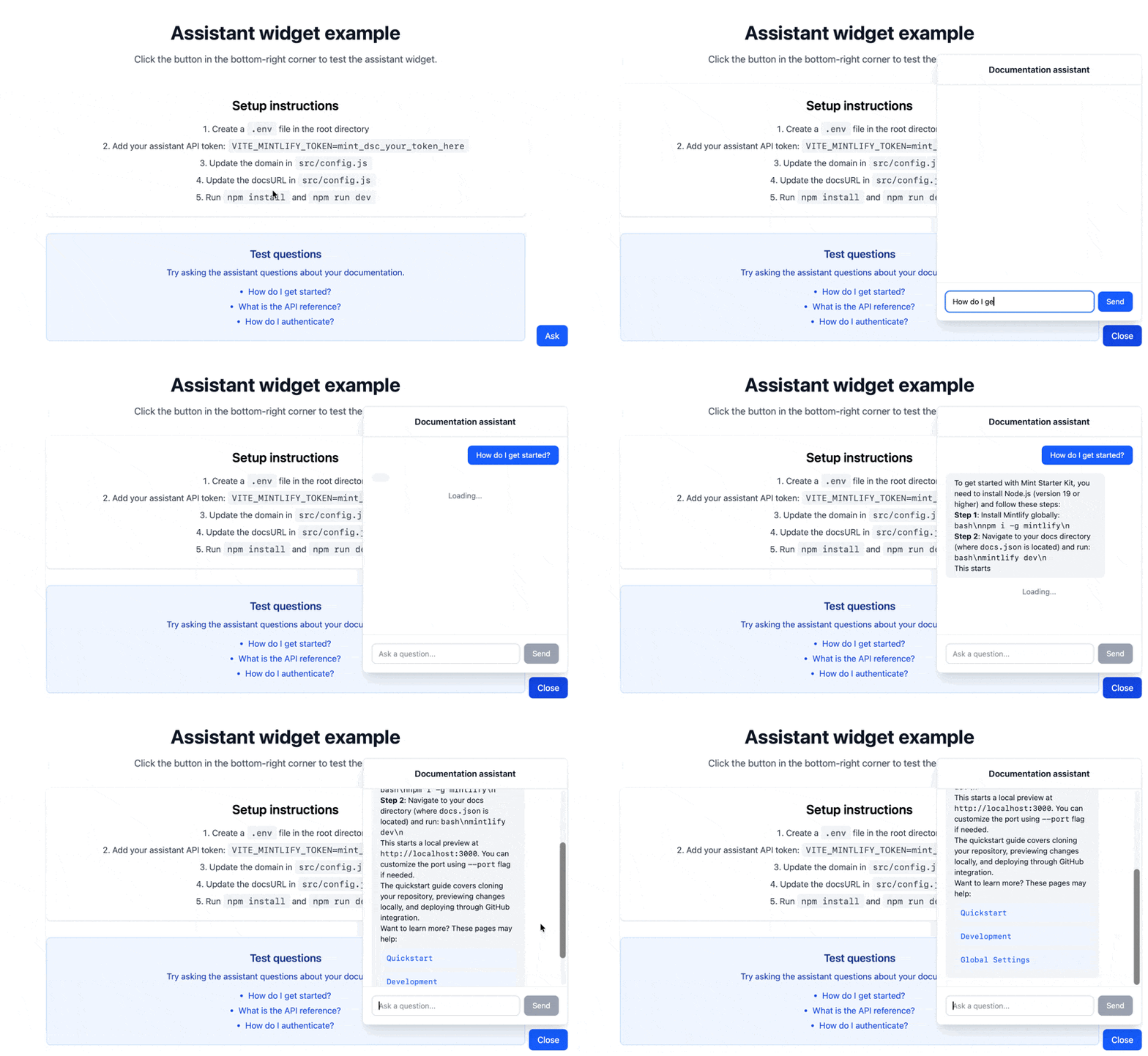
A reusable widget that embeds the assistant directly in your application. The widget provides:- A floating button that opens a chat panel when clicked
- Real-time streaming responses based on information from your documentation
- Message rendering with Markdown support
Prerequisites
- The Mintlify assistant enabled
- Your domain name, which appears at the end of your dashboard URL. For example, if your dashboard URL is
https://app.mintlify.com/org-name/domain-name, your domain name isdomain-name - An assistant API key
- Node.js v18 or higher and npm installed
- Basic React knowledge
Get your assistant API key
- Navigate to the API keys page in your dashboard.
- Click Create Assistant API Key.
- Copy the assistant API key (starts with
mint_dsc_) and save it securely.
Your assistant API key controls access to your assistant quota. This tutorial keeps the key server-side using a backend proxy so it never reaches the client bundle.
Set up the example
Clone the example repository and customize it for your needs.1
Clone the repository
2
Choose your development tool
The repository includes Next.js and Vite examples. Choose the tool you prefer to use.
3
Configure your project
Open Replace:
src/config.js and update with your Mintlify project details.src/config.js
your-domainwith your Mintlify project domain found at the end of your dashboard URL.https://yourdocs.mintlify.sitewith your actual documentation URL.
4
Set up your API key
Store your assistant API key as a server-side environment variable. Avoid the Replace
VITE_ prefix, which bundles the value into your client code:.env
mint_dsc_your_token_here with your assistant API key.Then add a backend route (for example, /api/assistant) to proxy requests to the Mintlify API:- Accept the user’s message from the widget.
- Attach the
Authorization: Bearer $MINTLIFY_TOKENheader and forward the request tohttps://api.mintlify.com/discovery/v1/assistant/{domain}/message. - Stream the upstream response back to the client unchanged, so token streaming and
X-Thread-Id/X-Thread-Keyheaders reach the widget. - Point the widget’s
apioption at your backend route instead of the Mintlify API directly.
5
Start the development server
Customization ideas
Source citations
Extract and display sources from assistant responses:Track conversation threads
Store thread IDs and thread keys to maintain conversation history across sessions. When a user creates a new conversation thread, the server returns two values in the response headers:X-Thread-Id: The thread identifierX-Thread-Key: A secret key for the thread (only returned once, when you create the thread)
threadId and threadKey in the request body. If you send a threadId without the corresponding threadKey, the server returns a 404 error.